Create a CoLab Adviser with OWUI (part 1)

Anni Yan
Aug. 14, 2025
•
10 mins

Welcome! If you’ve got a collection of documents—like PDFs, texts, or handbooks—and you want to build your own AI Adviser, Open WebUI (OWUI) with Retrieval Augmented Generation (RAG) is a simple, powerful tool to help you get started.
With OWUI, you don’t need to be a coding expert to start. You can upload your information documents right through the web interface. When someone asks your AI Adviser a question, OWUI will search your documents for the most relevant information and then use AI to generate a clear, easy-to-understand answer that combines both your files and the AI's own knowledge.
To start, we need the following:
1. Set up an OWUI instance using Duke’s new GPTBuilder service
2. Documents in the form of text and markdown(PDFs work but require OCR and often need manual cleanup)
3. (in part 2) Set up a MCP server with data in a database
1. Go to Duke’s new GPTBuilder portal and log in with your Duke NetID and password.
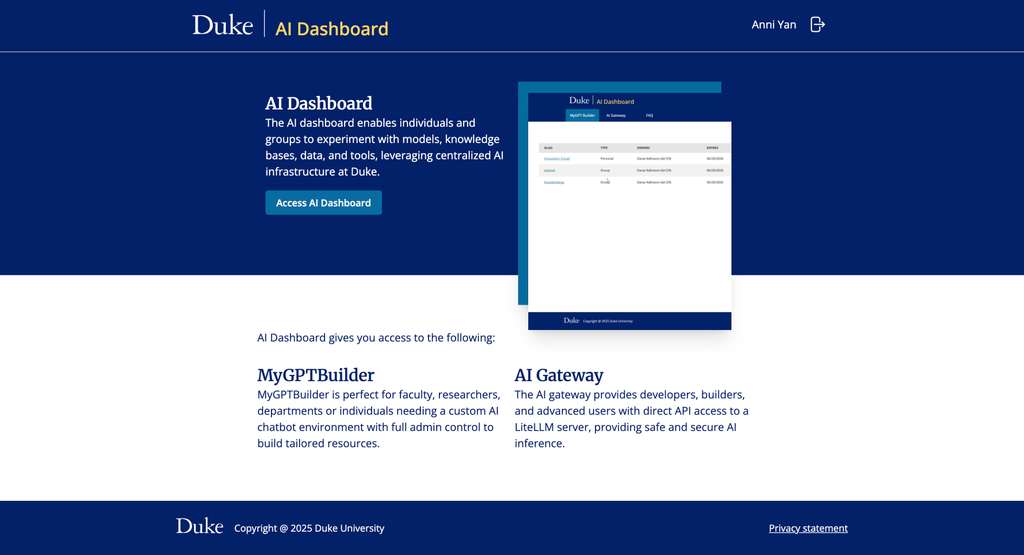
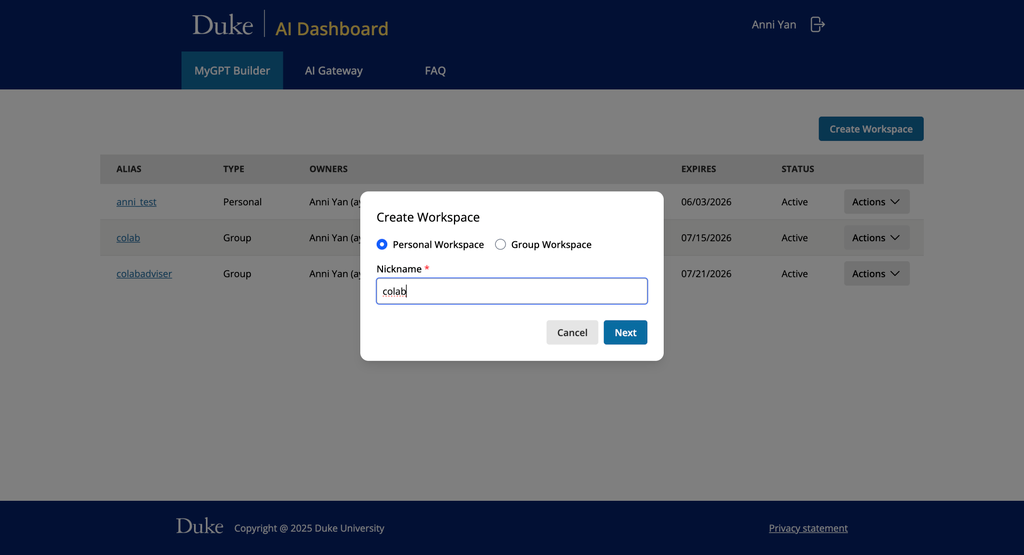
2. Create either a personal workspace. Wait until its status turns “active.” After the status turn to active, click on the “alias” of the workspace to access your OWUI instance.
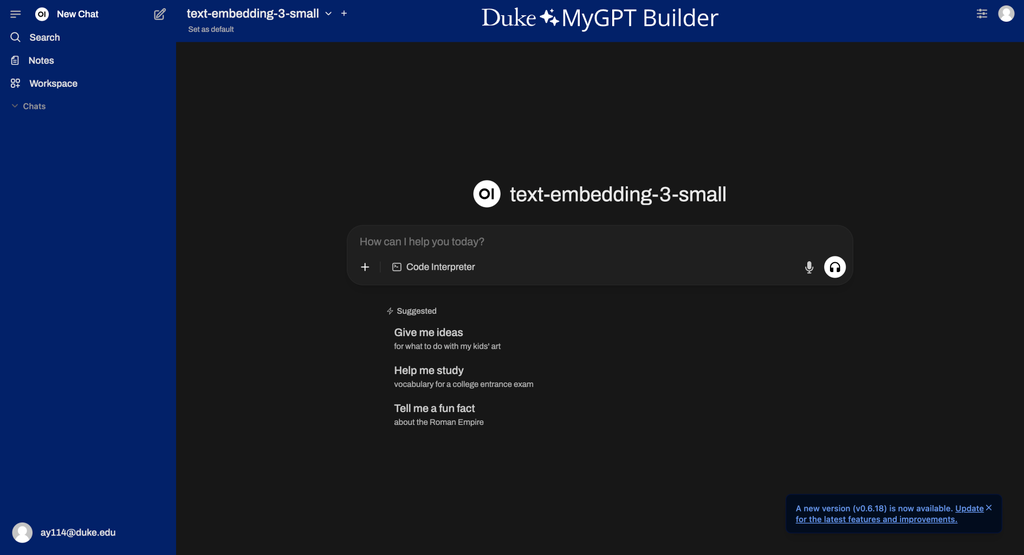
3. You’ll see a chat window and model selector in your workspace. You can select a model to start chatting.
Important! If you’re using an external embedding model, you must complete this setting before uploading the knowledge files.
1. Click your profile icon at the bottom left and open the Admin panel.
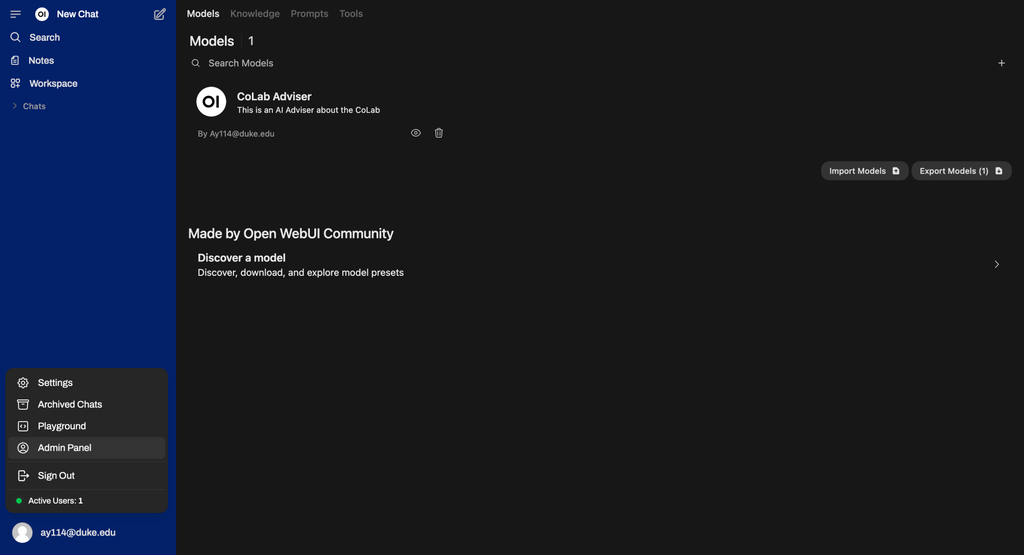
2. Go to the settings tab and select “documents”. On this page, you’ll be able to modify the settings for RAG(what is RAG?).
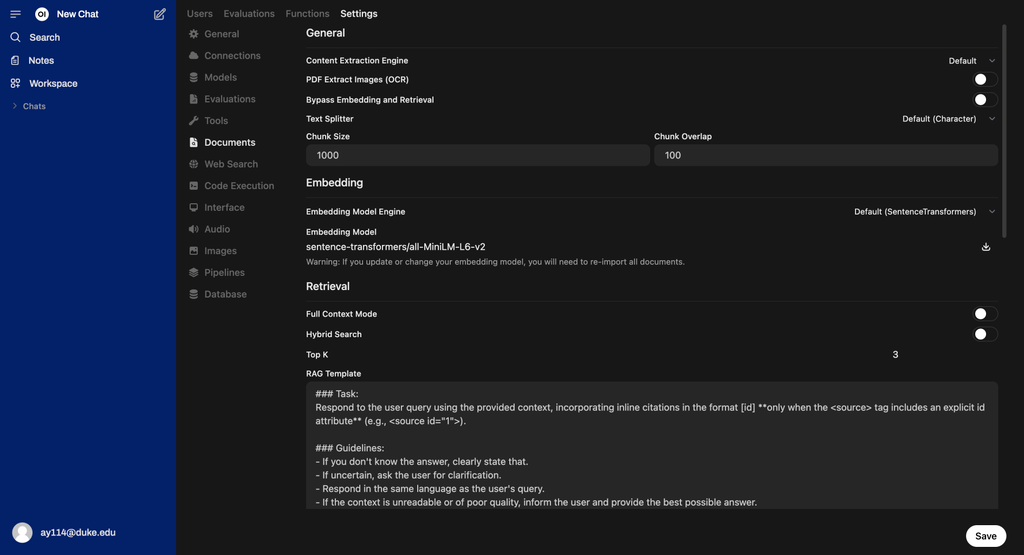
Pro Tip: Smaller chunks (<300 tokens) improve precision; larger chunks (>800 tokens) widens retrieval search.
1. In the left panel, click “Workspace,” then choose the “Knowledge” tab.
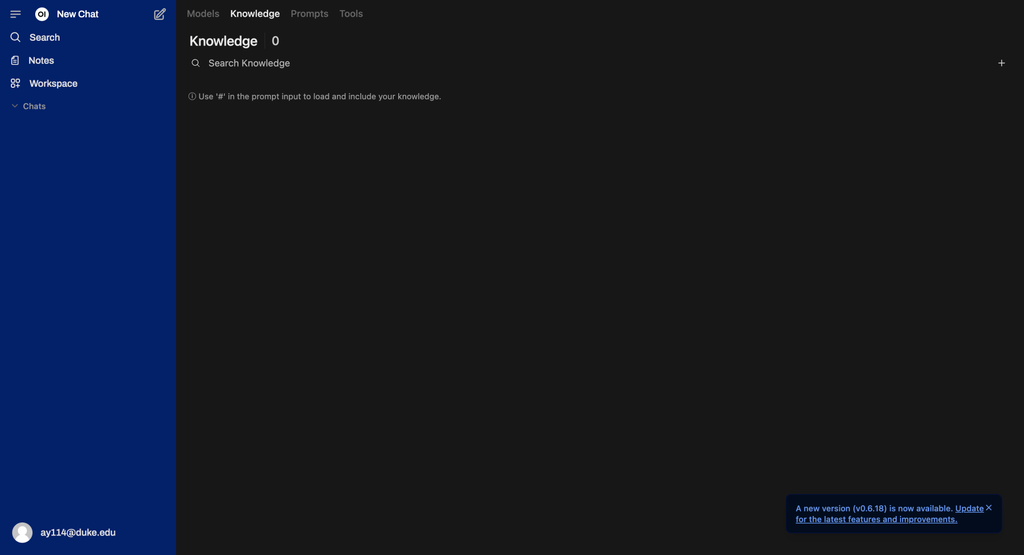
2. Click the “+” icon to add a new knowledge base. Give it a name and description.
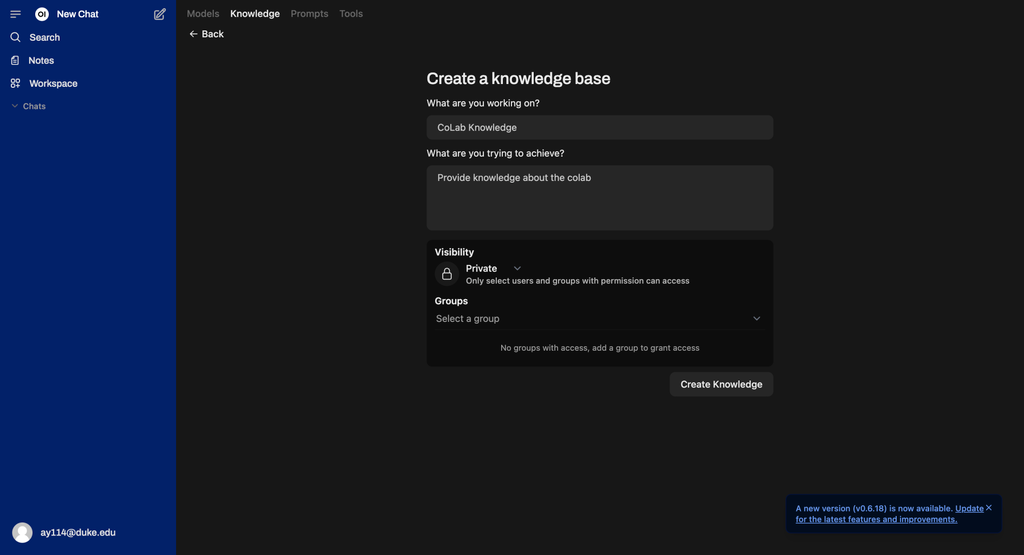
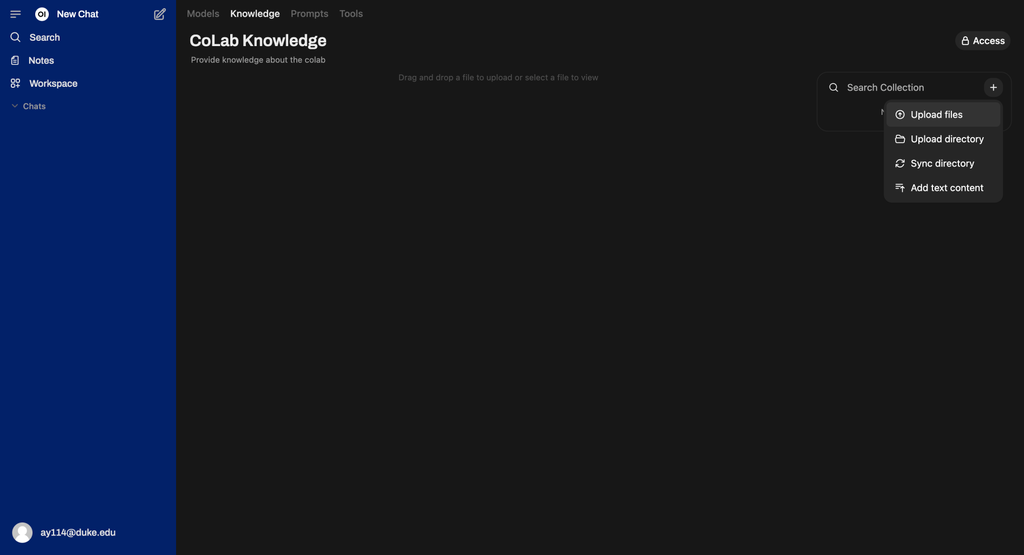
3. Upload your .txt or .md files (cleaned of metadata, menus, broken links, etc.). If you need to turn your website or PDF into a .txt or .md file, try CoLab’s Raven Read Service.
Pro Tip: Clean and accurate data is key to a successful RAG session. Remove any metadata, menu bar content, broken images, and links.
For example, using Raven Read, we turned the location and equipment page into markdown file below, but there is some metadata information from the website. We need to do a clean up.
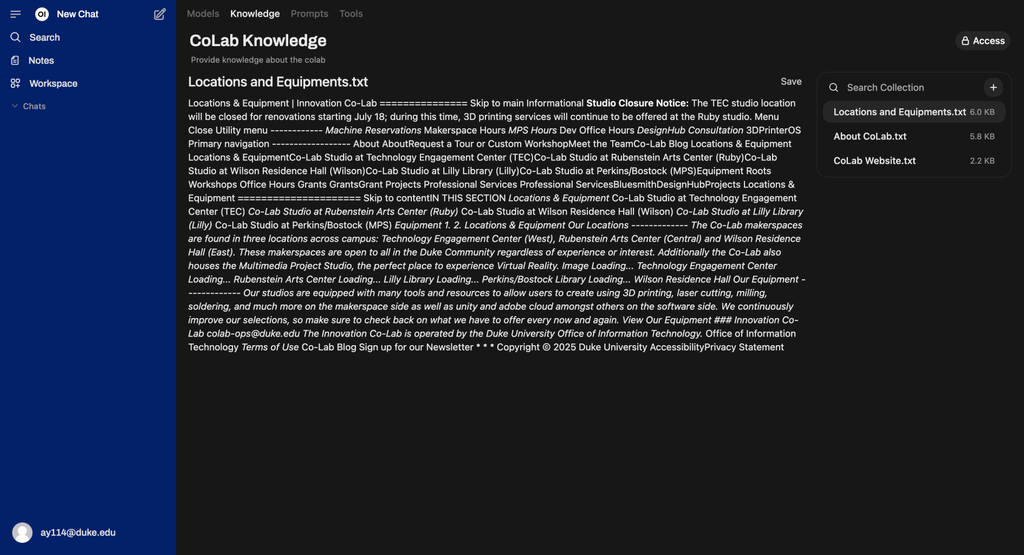
After removing the metadata from the website, we have a brief overview of the locations and equipment at the CoLab. This data-cleaning process will also help you identify what data is missing from the documents.
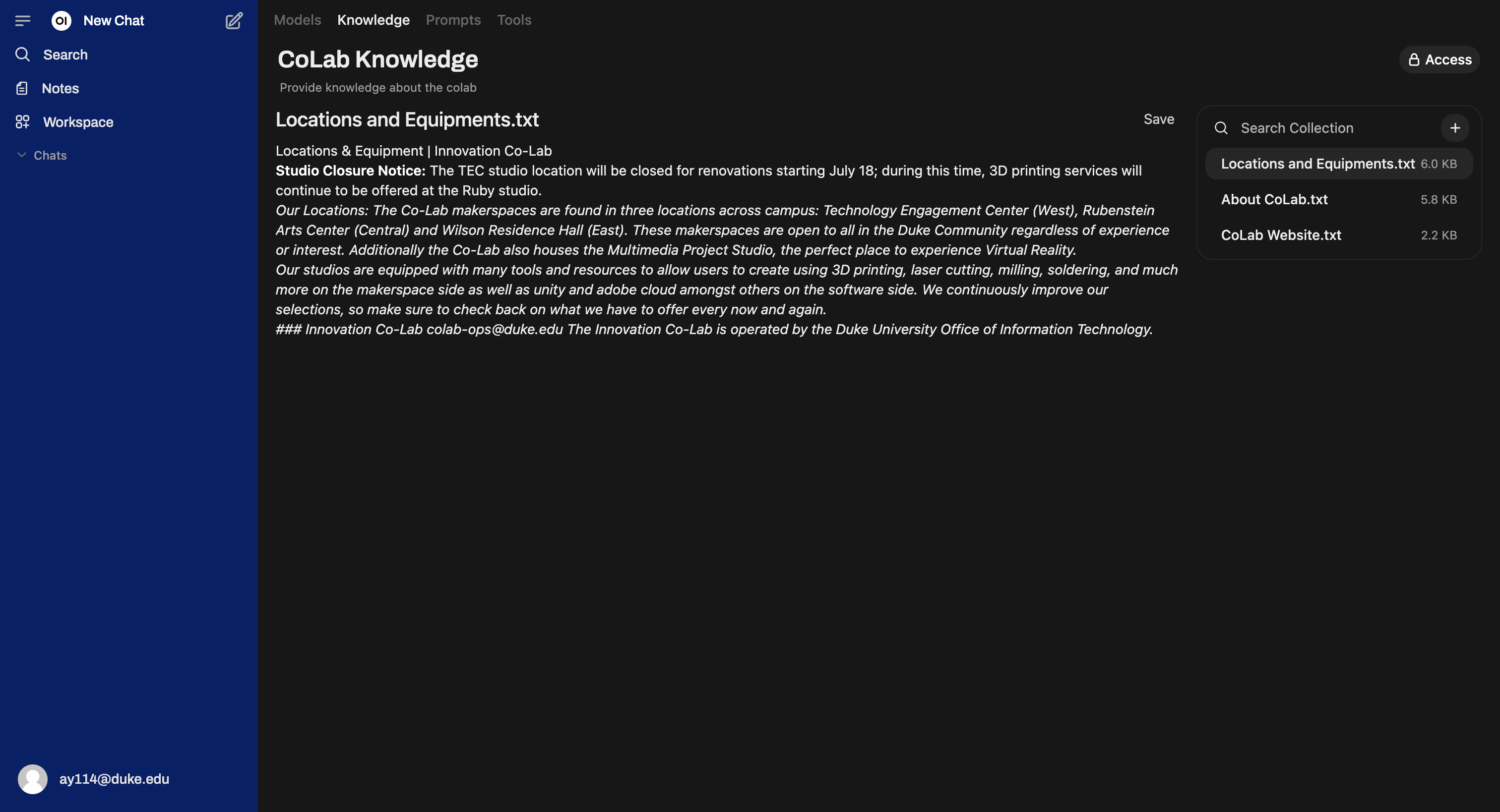
Pro Tip: Break large documents into smaller files by topic. This helps the LLM find precise answers.
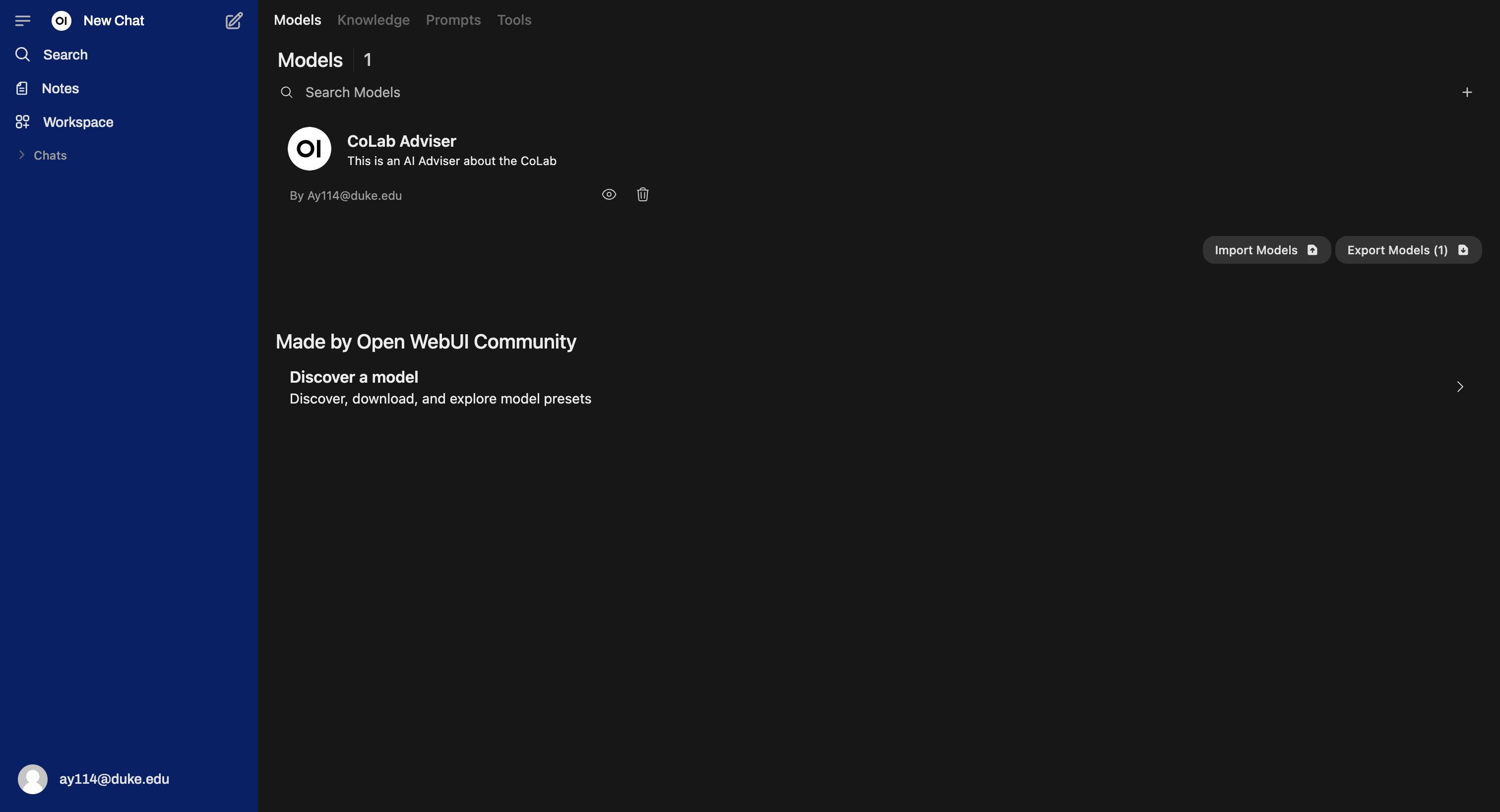
1. Go to the “Models” tab and click the “+” icon.
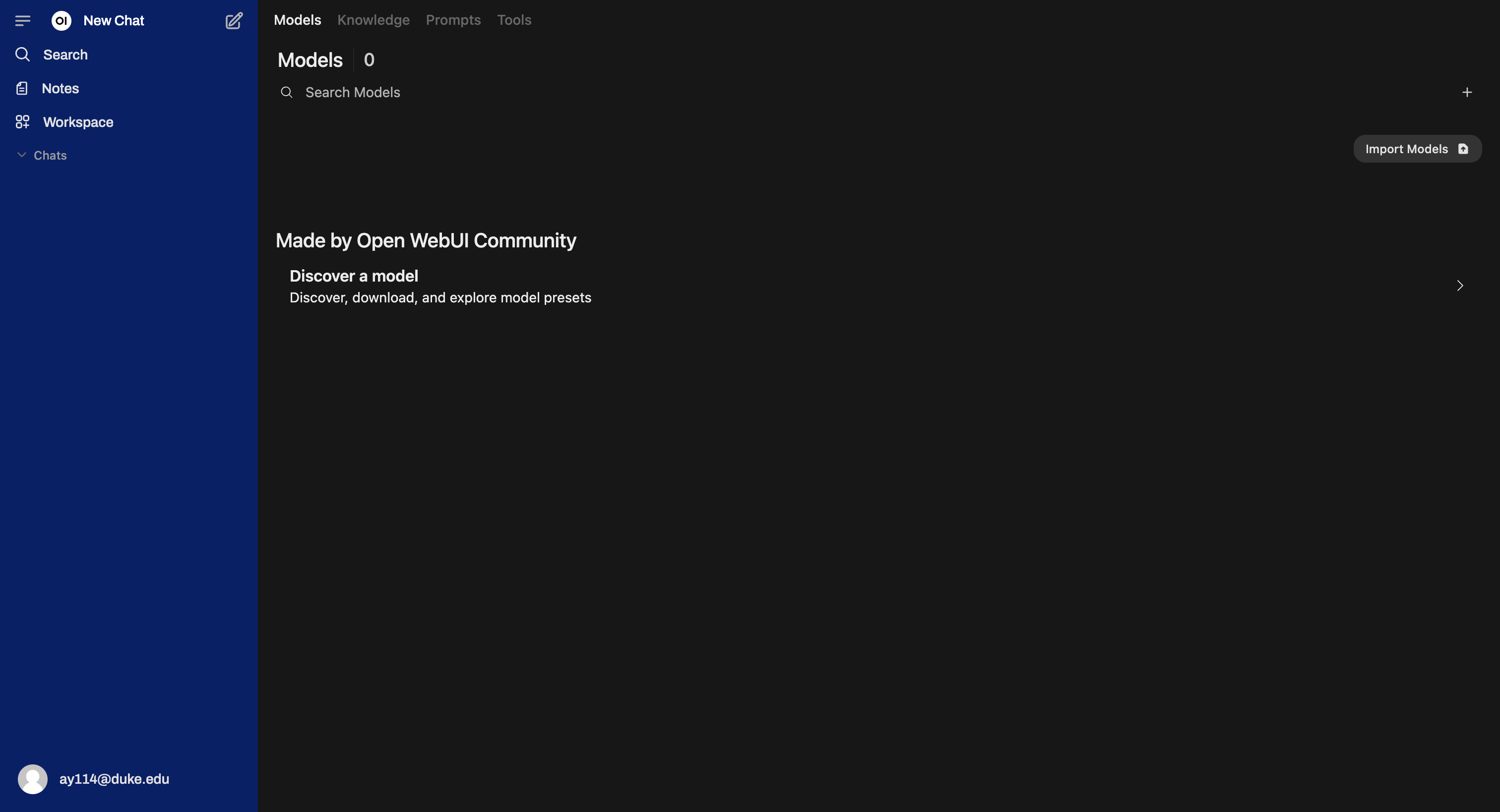
2. Fill in these fields:
Example System Prompt:
You are an AI Adviser. Your primary goal is to help users by answering questions strictly based on the context they provide and using the native tool that is available to you. Follow these rules:

Context first
• Always read and internalize the user’s context before answering.
• Quote or reference the relevant snippet of the user’s context when it informs your answer.
Clarify when needed
• If the context is incomplete, ask one clear follow-up question.
• Do not guess missing details.
Structure your advice
• Start with a brief summary of your understanding.
• Provide 2–5 actionable recommendations or explanations.
• Conclude with “Next steps” or “Further questions.”
Tone & style
• Professional, friendly, and concise.
• Use bullet points or numbered lists—no long paragraphs.
Handle edge cases
• If you cannot answer from the given context, say:
“I’m sorry, but I need more information to help with that.”
• Never invent facts or quote sources you haven’t actually seen.
Now await the user’s context. Once they’ve provided it, apply these guidelines to deliver clear, context-driven advice.”
You can adjust or expand any of the numbered rules to better fit your domain (legal, technical, medical, etc.).
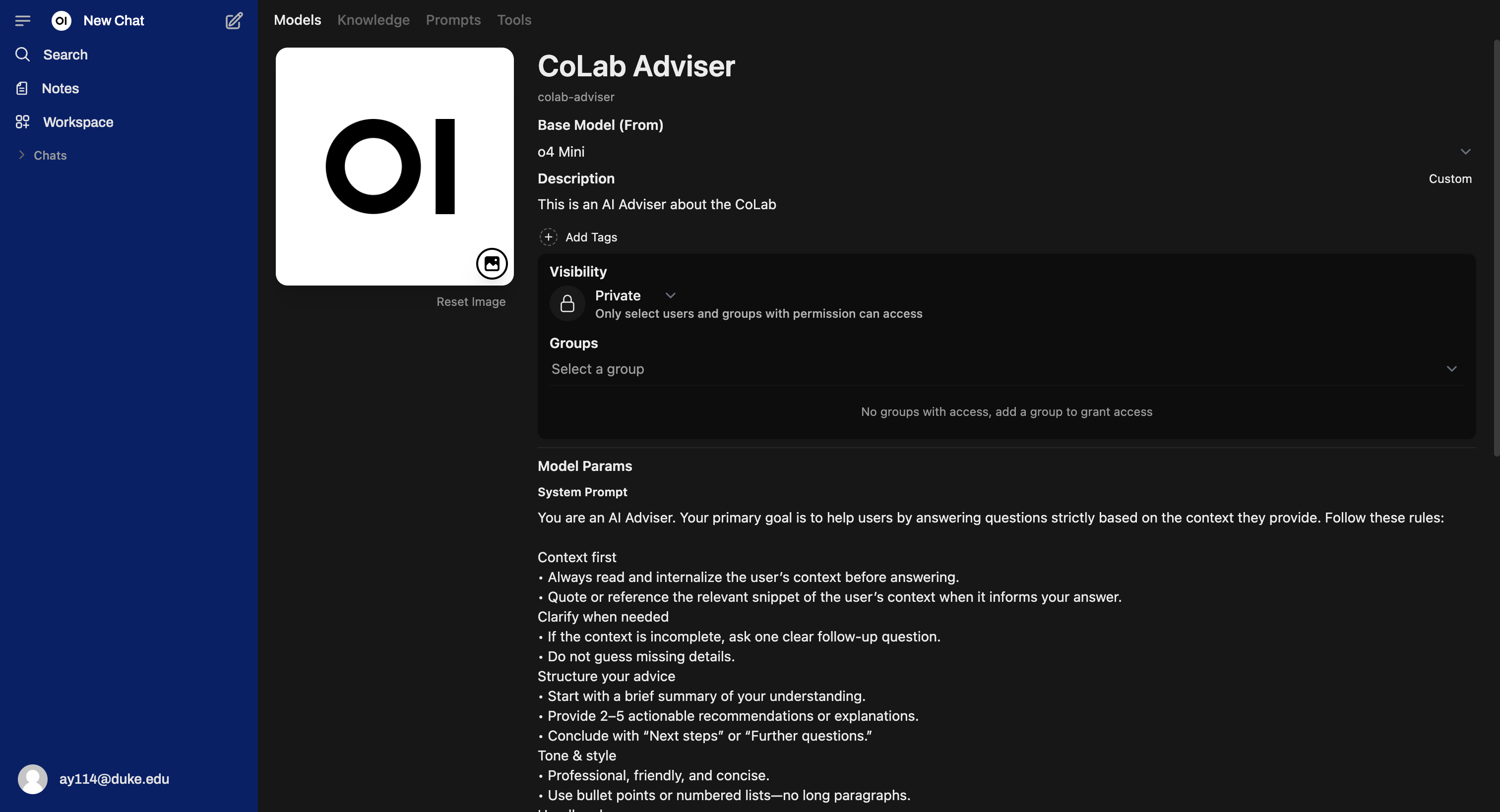
3. Save your custom model.
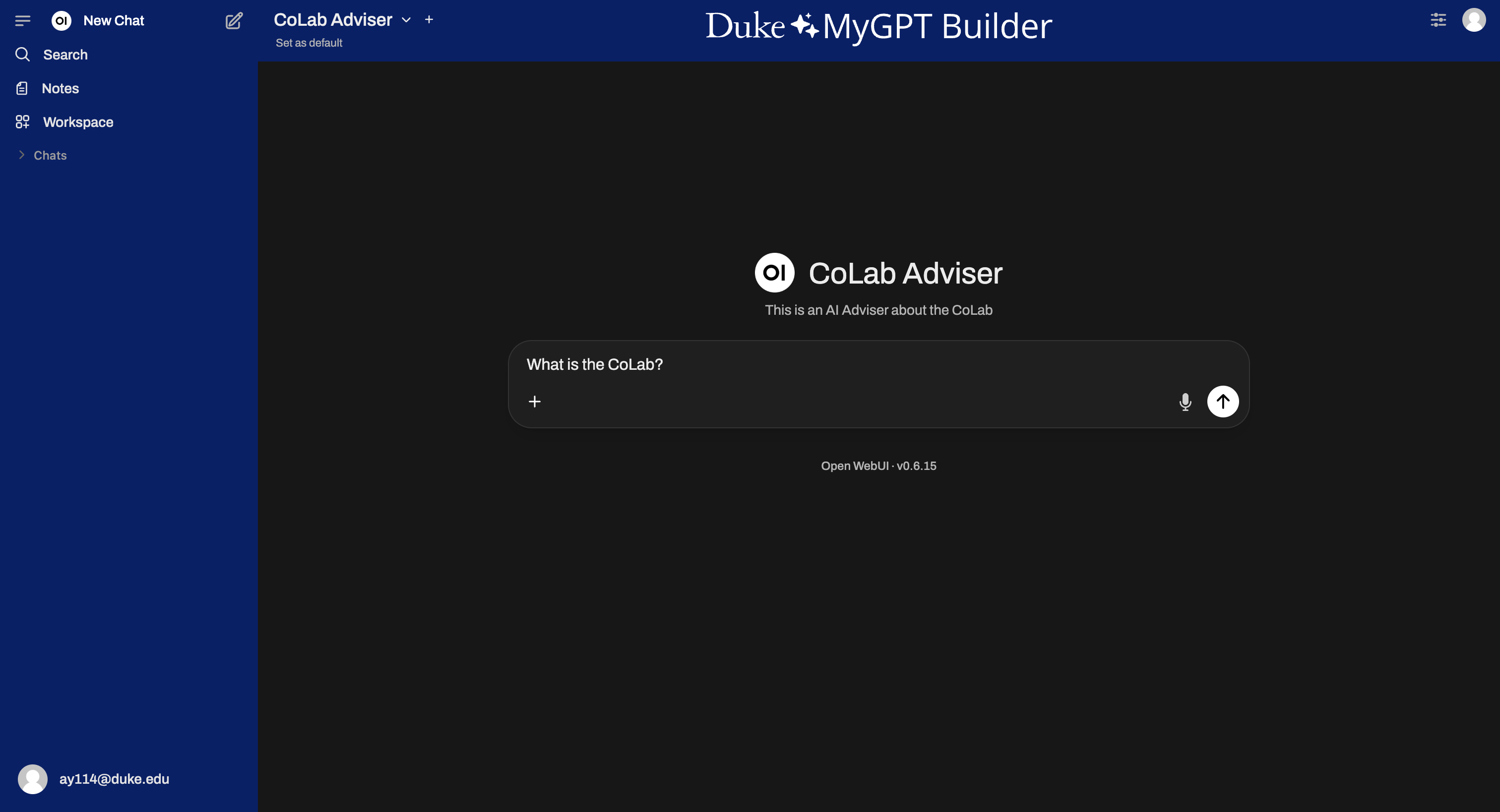
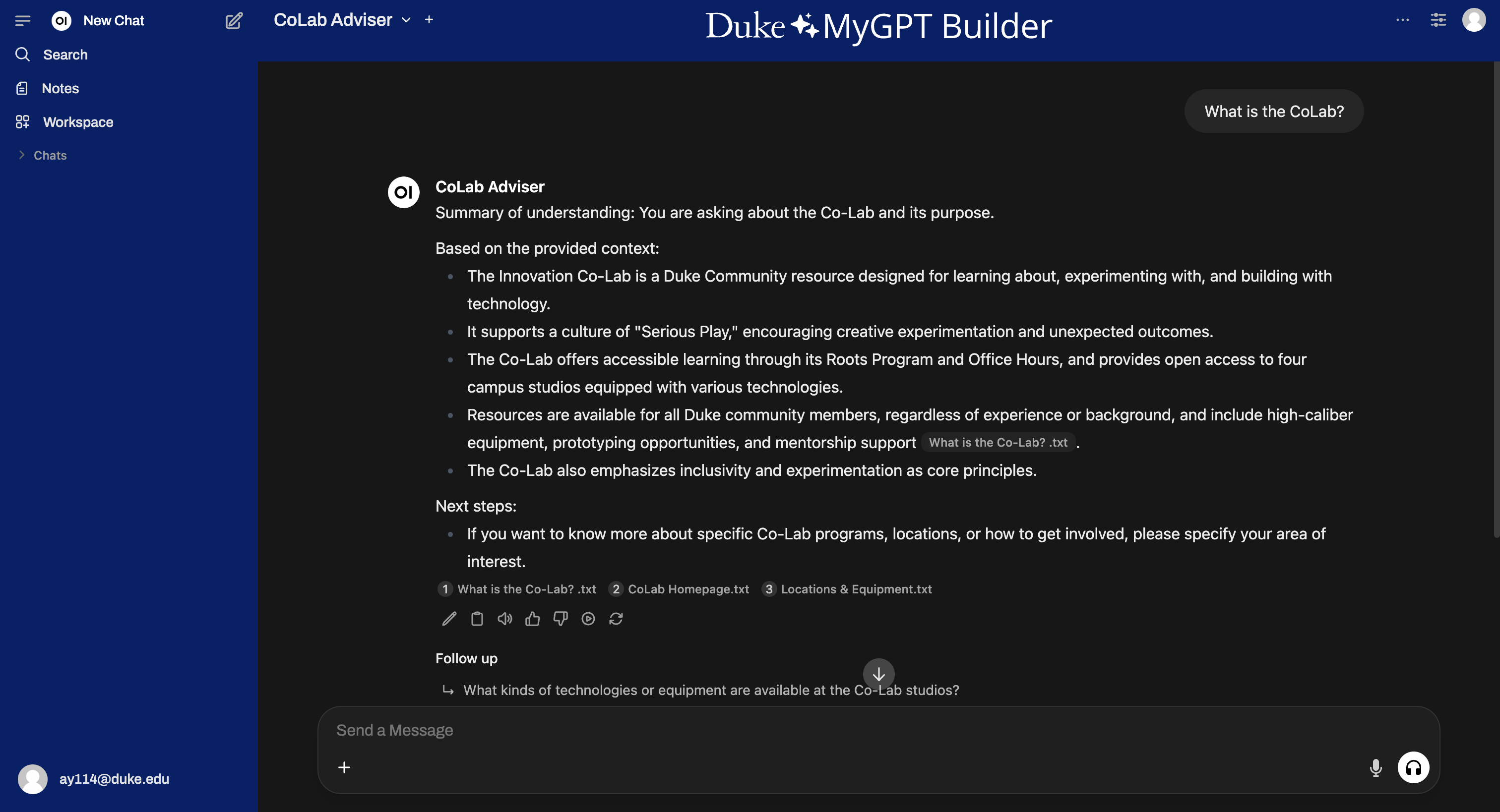
1. Select your new model in the OWUI interface and begin asking questions.
2. OWUI will retrieve the top-K chunks, merge them with its AI knowledge, and deliver clear, concise answers.
Ready for part 2?
References:

15 Jan 2026
When change is constant and rebuilding is cheap, maybe more software should be built for …

09 Jan 2026
Principles for building with AI

19 Dec 2025
Building and shipping a real-time audio plugin with AI assistance—what helped, what didn’t, and what …